How-to
How to Factory Reset Any iPad (iPad, Air, mini and Pro)
Erase it from Settings, sign out of iCloud, and the buttons, iPadOS and SIM differences for every iPad, iPad Air, iPad mini and iPad Pro.
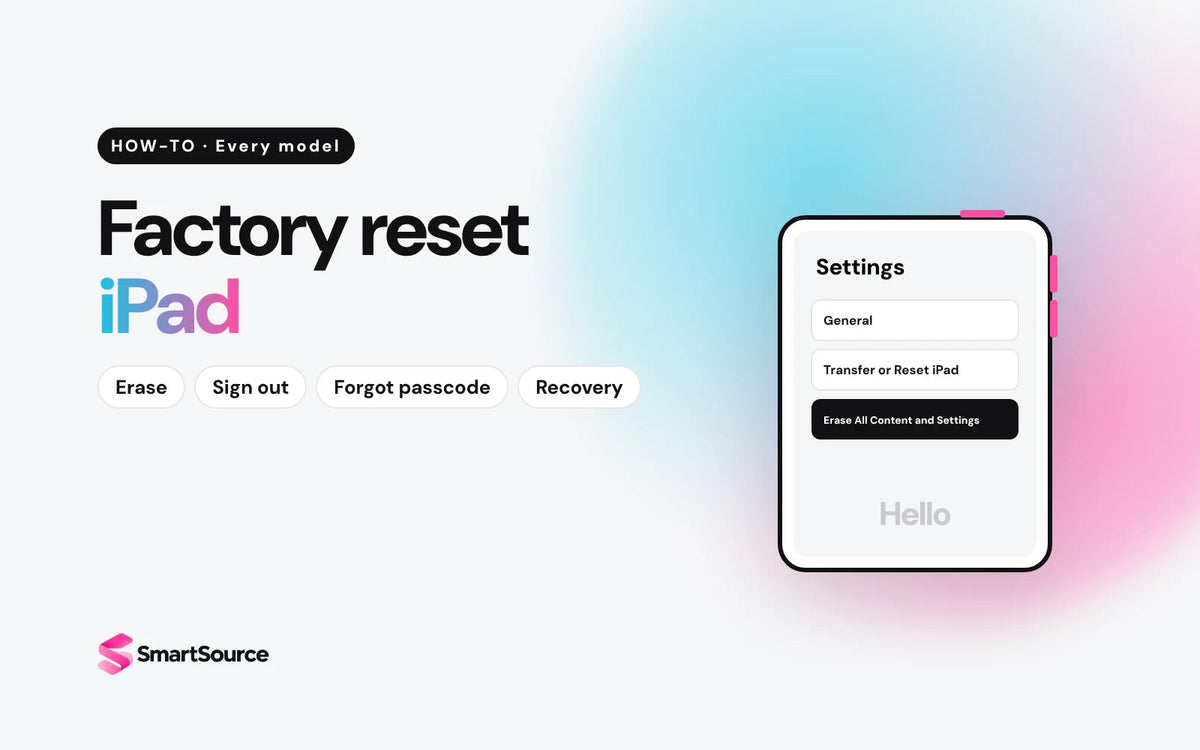
On any iPad, go to Settings → General → Transfer or Reset iPad → Erase All Content and Settings. Enter your passcode and Apple Account password. It's done when you see "Hello". Selling it? Sign out of your Apple Account first.
Sign out and factory reset your iPad
First, 2 quick checks
-
Back up your iPad. A reset deletes everything.
How
Settings → [your name] → iCloud → iCloud Backup → Back Up Now. Or use Finder on a Mac or the Apple Devices app on Windows.
-
Sign out of your Apple Account if you're selling. This turns off Activation Lock.
How
iPadOS 26 and later: Settings → [your name] → Sign Out, then pick Erase this iPad (signs out and erases in one go) or Sign Out But Don't Erase. iPadOS 18 and earlier: Settings → [your name] → Sign Out → enter your password → Turn Off.
- Open Settings → General.
- Tap Transfer or Reset iPad (at the bottom).
- Tap Erase All Content and Settings, enter your passcode or Apple Account password, then tap Continue.
- Cellular iPad with an eSIM? Choose to erase it if you're selling.
- Wait for the Hello screen. Done.
Apple says erasing turns off Find My and Activation Lock. On iPadOS 17 and older, menus say "Apple ID" instead of "Apple Account". Same password.
Find your iPad
The steps above work on every iPad. These are the parts that change. Not sure which iPad you have? Settings → General → About shows the model name.
| Model | Newest iPadOS | Unlock | Cellular SIM | Locked out? Tap | Sell it |
|---|---|---|---|---|---|
| iPad (5th gen) | iPadOS 16 | Home button | SIM card | Erase iPad | 5th gen |
| iPad (6th gen) | iPadOS 17 | Home button | SIM card | Forgot Passcode? | 6th gen |
| iPad (7th gen) | iPadOS 18 | Home button | SIM card | Forgot Passcode? | 7th gen |
| iPad (8th gen) | iPadOS 26 | Home button | SIM card | Forgot Passcode? | 8th gen |
| iPad (9th gen) | iPadOS 27 | Home button | SIM card | Forgot Passcode? | 9th gen |
| iPad (10th gen) | iPadOS 27 | Touch ID in top button | SIM card | Forgot Passcode? | 10th gen |
| iPad (A16) | iPadOS 27 | Touch ID in top button | eSIM only | Forgot Passcode? | A16 |
| iPad mini 4 | iPadOS 15 | Home button | SIM card | Erase iPad | mini 4 |
| iPad mini (5th gen) | iPadOS 26 | Home button | SIM card | Forgot Passcode? | mini 5 |
| iPad mini (6th gen) | iPadOS 27 | Touch ID in top button | SIM card | Forgot Passcode? | mini 6 |
| iPad mini (A17 Pro) | iPadOS 27 | Touch ID in top button | eSIM only | Forgot Passcode? | mini A17 Pro |
| iPad Air 2 | iPadOS 15 | Home button | SIM card | Erase iPad | iPad |
| iPad Air (3rd gen) | iPadOS 26 | Home button | SIM card | Forgot Passcode? | Air 3 |
| iPad Air (4th gen), Air (5th gen, M1) | iPadOS 27 | Touch ID in top button | SIM card | Forgot Passcode? | Air 4, Air 5 |
| iPad Air 11-inch and 13-inch (M2, M3, M4) | iPadOS 27 | Touch ID in top button | eSIM only | Forgot Passcode? | 11 M2, 13 M2, 11 M3, 13 M3, 11 M4, 13 M4 |
| iPad Pro 9.7-inch, Pro 12.9-inch (1st gen) | iPadOS 16 | Home button | SIM card | Erase iPad | 9.7, 12.9 1st |
| iPad Pro 10.5-inch, Pro 12.9-inch (2nd gen) | iPadOS 17 | Home button | SIM card | Forgot Passcode? | 10.5, 12.9 2nd |
| iPad Pro 11-inch (1st gen), Pro 12.9-inch (3rd gen) | iPadOS 26 | Face ID | SIM card | Forgot Passcode? | 11 1st, 12.9 3rd |
| iPad Pro 11-inch (2nd to 4th gen), Pro 12.9-inch (4th to 6th gen) | iPadOS 27 | Face ID | SIM card | Forgot Passcode? | 11 2nd, 11 M1, 11 M2, 12.9 4th, 12.9 M1, 12.9 M2 |
| iPad Pro 11-inch and 13-inch (M4, M5) | iPadOS 27 | Face ID | eSIM only | Forgot Passcode? | 11 M4, 13 M4, 11 M5, 13 M5 |
Cellular SIM applies to Wi-Fi + Cellular models only. "Locked out? Tap" is what the lock screen shows on the newest iPadOS the model can run.
Selling a cellular iPad? Take out the SIM card if it has a tray. The newest iPad, iPad mini, iPad Air and iPad Pro models are eSIM only, so just erase the eSIM during the reset.
Forgot your passcode?
You can still erase it. Everything on it is lost, and you need your Apple Account password after. Without a computer, the iPad needs Find My on and a Wi-Fi or cellular connection.
- Enter the wrong passcode until you see iPad Unavailable.
- Tap Forgot Passcode?
- Tap Start iPad Reset.
- Enter your Apple Account password, then tap Erase iPad.
- Enter the wrong passcode until you see iPad Unavailable or Security Lockout.
- Tap Erase iPad.
- Tap Erase iPad again and enter your Apple ID password.
- Turn the iPad off.
- Connect it to a Mac (Finder) or Windows PC (Apple Devices app).
- Put it in recovery mode (buttons below).
- On the computer, click Restore.
Any iPad. Use this if it has no connection or no erase option.
Frozen or stuck? Button combos
Force restart deletes nothing. Recovery mode needs a Mac (Finder) or Windows PC (Apple Devices app). On iPads without a Home button, the volume buttons are on the edge next to the top button.
iPad without a Home button (Face ID, or Touch ID in the top button)
Use it when the screen is frozen or black.
- Press and quickly let go of the volume button closest to the top button.
- Press and quickly let go of the volume button farthest from the top button.
- Press and hold the top button until the Apple logo shows, then let go.
Use it when it's stuck on the Apple logo or you forgot the passcode.
- Press and quickly let go of the volume button closest to the top button.
- Press and quickly let go of the volume button farthest from the top button.
- Press and hold the top button. Keep holding past the Apple logo. Let go when you see the computer-and-cable screen.
Connect to the computer first. Click Update to keep your data, or Restore to erase.
iPad with a Home button
Use it when the screen is frozen or black.
- Press and hold the top button and the Home button together until the Apple logo shows.
Use it when it's stuck on the Apple logo or you forgot the passcode.
- Press and hold the Home and top buttons together.
- Keep holding until you see the computer-and-cable screen.
Connect to the computer first. Click Update to keep your data, or Restore to erase.
Already sold it? Remove it from your account
Didn't sign out before handing it over? The new owner is locked out. Fix it from any browser:
- Go to icloud.com/find and sign in.
- Select the iPad from your devices.
- Click Remove This Device.
- Change your Apple Account password.
Selling it? Run this checklist
Get an instant price on our Sell your iPad page, or use the "Sell it" links in the table above. We email you a prepaid shipping label.
Upgrading?
iPads stuck on iPadOS 15 to 18 miss new features and apps over time. Every iPad we sell is tested and has up to a 1-year warranty.


Common questions
Does a factory reset update my iPad?
No. A reset keeps the iPadOS version that's installed. Update separately in Settings → General → Software Update.
Does erasing remove Activation Lock?
Yes, if you erase from Settings with your Apple Account password, or sign out first. If someone else has it, remove it at icloud.com/find.
What happens to my eSIM?
The erase screen asks whether to keep or erase it. Erase it if you're selling. It doesn't cancel your plan with your carrier.
Can I factory reset an iPad without the Apple Account password?
You can erase it in recovery mode, but Activation Lock stays on. To clear it you need the password, or proof of purchase sent to Apple.
Will the reset erase my iCloud photos?
No. Erasing only deletes what's stored on the iPad. Anything synced to iCloud stays in your account.
Which button is the top button?
The button on the top edge. On iPad Air, iPad mini and the newest iPad, it also has Touch ID. The volume buttons sit next to it.
Sources
Every step was checked against Apple's support pages on October 18, 2026. Menu names can change with iPadOS updates.
- What to do before you sell, give away, or trade in your iPhone or iPad (Apple)
- How to factory reset your iPhone, iPad, or iPod touch (Apple)
- Erase iPad (iPad User Guide)
- If you forgot your passcode, reset your device without a computer (Apple)
- How to reset your iPad and your passcode using your Mac or PC (Apple)
- Force restart iPad (iPad User Guide)
- Identify your iPad model (Apple)
- iPad models compatible with iPadOS 27 (iPad User Guide)
- iPad models compatible with iPadOS 26 (iPad User Guide)
- iPad models compatible with iPadOS 18 (iPad User Guide)
- iPad models compatible with iPadOS 17 (iPad User Guide)
- iPad models compatible with iPadOS 16 (iPad User Guide)
- iPad models compatible with iPadOS 15 (iPad User Guide)
- How to remove Activation Lock (Apple)
Still choosing? Read our guide to which iPad to buy.
Skip the new-phone price
Get the iPad (10th gen) pre-owned from $395.99, tested by real technicians with up to a 1-year warranty and 14-day returns.