How-to
How to Factory Reset Any Samsung Galaxy (S9 to S26, Fold, Flip, A)
The Settings steps, how to avoid the FRP lock, and the recovery and restart buttons for every Galaxy from the S9 to the S26.
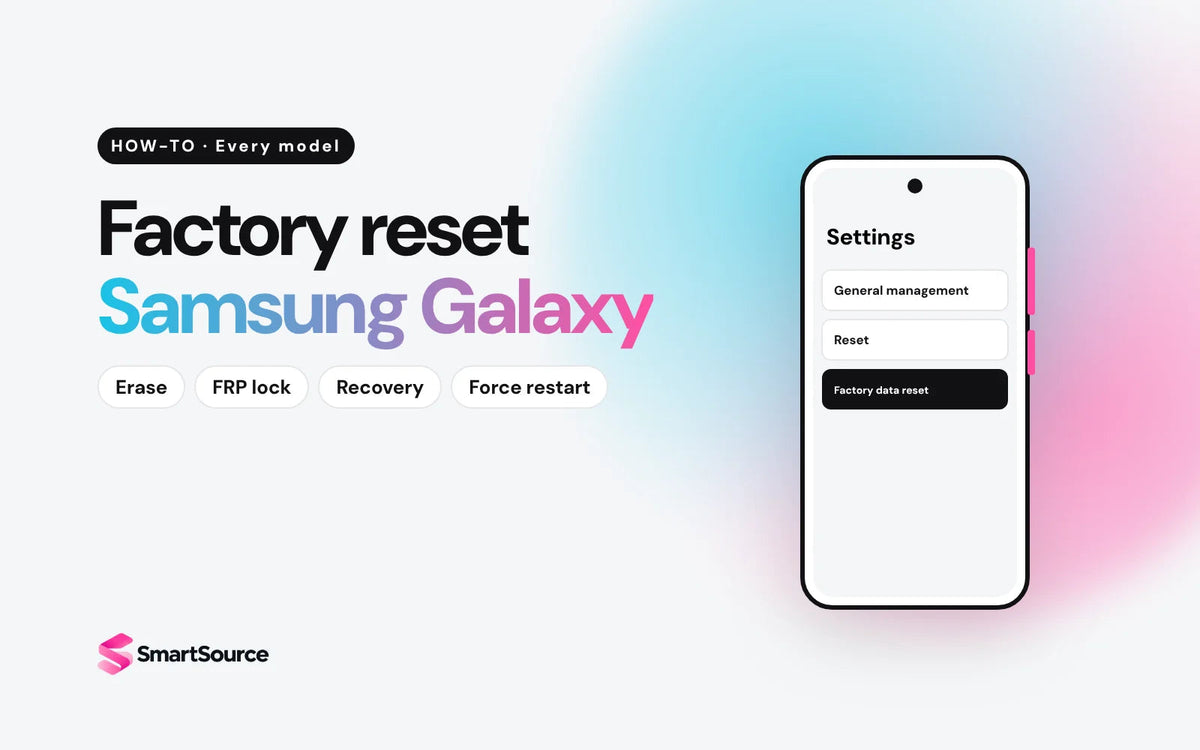
On any Samsung Galaxy, go to Settings → General management → Reset → Factory data reset, tap Reset, then Delete all. Enter your PIN and Samsung account password. Selling it? Remove your Google account first so the next owner isn't locked out.
Factory reset your Samsung Galaxy
First, 4 quick checks
-
Back up your photos and data. A reset deletes everything.
How
Settings → [your name] → Samsung Cloud → Back up data, or Settings → Accounts and backup → Back up data (Google Drive). For a full copy, use the Smart Switch app on a PC or Mac with a USB cable. Samsung Cloud skips single files over 1 GB.
-
Remove your Google account if you're selling. This turns off Google's anti-theft lock (FRP).
How
Settings → Accounts and backup → Manage accounts → tap your Google account → Remove account. Google calls this lock "device protection". With it on, the phone asks for your Google password after a reset.
-
Sign out of your Samsung account.
How
Settings → tap your name at the top → Sign out → enter your Samsung account password.
- Changed your Google password today? Wait 24 hours before you reset. Google asks for this.
- Open Settings → General management.
- Tap Reset → Factory data reset.
- Read the list, scroll down and tap Reset.
- Enter your PIN, pattern or password.
- Tap Delete all. If asked, enter your Samsung account password.
- Wait for the phone to restart to the setup screen. Done.
Encrypted microSD card? Decrypt it first (search Settings for "Decrypt SD card") or you lose what's on it. Charge to at least 70% and stay on Wi-Fi.
Find your Galaxy
The steps above work on every Galaxy from the S9 up. These are the parts that change. Not sure which model you have? Settings → About phone shows the model name.
| Model | Recovery buttons | SIM (Canadian models) | Samsung security updates | Sell it |
|---|---|---|---|---|
| Galaxy S9, S9+ | Vol Up + Bixby + Power | SIM card only | Ended | Samsung |
| Galaxy S10e, S10, S10+ | Vol Up + Bixby + Power | SIM card only | Ended | Samsung |
| Galaxy S20, S20+, S20 Ultra | Vol Up + Side | SIM card + eSIM* | Ended | S20, S20+, S20 Ultra |
| Galaxy S21, S21+, S21 Ultra | Vol Up + Side | SIM card + eSIM | Ended | S21, S21+, S21 Ultra |
| Galaxy S21 FE | Vol Up + Side | SIM card | Every 3 months | S21 FE |
| Galaxy S22, S22+, S22 Ultra | Vol Up + Side | SIM card + eSIM | Every 3 months | S22, S22+, S22 Ultra |
| Galaxy S23, S23+, S23 Ultra, S23 FE | Vol Up + Side | SIM card + eSIM | Monthly | S23, S23+, S23 Ultra, S23 FE |
| Galaxy S24, S24+, S24 Ultra, S24 FE | Vol Up + Side | SIM card + eSIM | Monthly | S24, S24+, S24 Ultra, S24 FE |
| Galaxy S25, S25+, S25 Ultra, S25 Edge, S25 FE | Vol Up + Side | SIM card + eSIM | Monthly | S25, S25+, S25 Ultra, S25 Edge, S25 FE |
| Galaxy S26, S26+, S26 Ultra, S26 FE | Vol Up + Side | SIM card + eSIM | Monthly | S26, S26+, S26 Ultra, S26 FE |
| Galaxy Z Flip3 | Vol Up + Side | SIM card + eSIM | Ended | Z Flip3 |
| Galaxy Z Fold4, Z Flip4 | Vol Up + Side | SIM card + eSIM | Every 3 months | Z Fold4, Z Flip4 |
| Galaxy Z Fold5 to Z Fold8, Z Flip5 to Z Flip8 | Vol Up + Side | SIM card + eSIM | Monthly | Fold5, Fold6, Fold7, Fold8, Flip5, Flip6, Flip7, Flip8 |
| Galaxy A16 5G, A35, A36 | Vol Up + Side | SIM card + eSIM | Every 3 months | A16, A35, A36 |
| Galaxy A54 | Vol Up + Side | SIM card + eSIM | Check Samsung's list | A54 |
*Samsung says eSIM depends on where the phone was made, so some Canadian S20 units may not have it. Security update status is from Samsung's supported-devices list. "Ended" means the model isn't on it anymore.
Selling it? Take out the SIM card and any microSD card. Using an eSIM? Remove it before the reset: Settings → Connections → SIM manager → tap the eSIM → Remove. Removing it doesn't cancel your plan, so call your carrier if you're ending service.
Forgot your PIN or pattern?
You can still erase it. Everything on it is lost. Afterward, the phone asks for the Google account that was on it, so have that password ready.
- On a computer, go to smartthingsfind.samsung.com and sign in with your Samsung account.
- Select the phone.
- Click Erase data, confirm your Samsung account, then click Erase.
Works if the phone is on, online, signed in to your Samsung account and has Find My Mobile turned on. Erases the microSD card too.
- Turn the phone off.
- Connect it to a computer with a USB cable. Samsung lists this step, so don't skip it.
- Hold the recovery buttons for your model (see below) until the Samsung logo shows, then let go.
- Use the volume keys to pick Wipe data/factory reset. Press Side (or Power) to select.
- Pick Factory data reset (or Yes). Press Side to confirm.
- When you see Data wipe complete, pick Reboot system now.
Any Galaxy. Use this if the phone has no connection or isn't signed in to Samsung.
Recovery buttons: Galaxy S20 and later, Z Fold, Z Flip and Galaxy A
- Hold Volume Up and the Side button together.
- Let go when the Samsung logo or recovery menu appears.
Recovery buttons: Galaxy S9 and S10 (Bixby button on the left)
- Hold Volume Up, Bixby and Power together until the phone vibrates and the logo shows.
- Let go when the Samsung logo or recovery menu appears.
Recovery mode turns on Google's FRP lock. After the reset, setup asks for the Google account that was on the phone. If you can't sign in, take the phone and proof of purchase to an authorized Samsung service centre. That's why Samsung says to reset from Settings when you can.
Frozen? Force restart
A force restart deletes nothing. Try it before anything else.
Galaxy S20 and later, Z Fold, Z Flip and Galaxy A
- Hold Volume Down and the Side button together.
- Keep holding for about 10 seconds, until the phone turns off and back on.
Galaxy S9 and S10 (Bixby button on the left)
- Hold Volume Down and the Power button together.
- Keep holding for about 10 seconds, until the phone turns off and back on.
Already sold it? Erase it remotely
Handed it over without resetting? Erase it from any browser. Use Samsung Find, or Google's Find Hub if you weren't signed in to Samsung:
- Samsung: go to smartthingsfind.samsung.com → select the phone → Erase data.
- Google: go to google.com/android/find → select the phone → Factory reset.
- Change your Google and Samsung account passwords. If you used Samsung Wallet or Google Wallet, remove your cards too.
The phone has to be online for either one to work. Google's reset may not erase a microSD card.
Selling it? Run this checklist
Get an instant price on our Sell your Samsung page, or use the "Sell it" links in the table above. We email you a prepaid shipping label.
Upgrading?
The Galaxy S21, S20, S10 and S9 no longer get Samsung security updates. Every phone we sell is unlocked, tested and has up to a 1-year warranty.

Common questions
Does a factory reset remove FRP?
No. A reset turns FRP on if a Google account is still on the phone. Remove the Google account in Settings before the reset and FRP stays off.
How long after changing my Google password can I reset?
Wait 24 hours. Google and Samsung both say a reset too soon after a password change can lock the phone.
Does a factory reset update my Galaxy?
No. It keeps the software version that's installed. Update in Settings → Software update → Download and install.
Does a factory reset erase the microSD card?
Take the card out before you sell. Samsung Find's remote erase wipes it, but Google's remote reset may not.
Does a factory reset remove a carrier lock?
No. In Canada, your carrier must unlock the phone for free when you ask (CRTC Wireless Code).
Recovery mode or Settings: which is better?
Settings. It asks for your PIN and Samsung password, so no FRP lock is triggered by mistake. Use recovery mode only when you can't get into the phone.
Sources
Every step was checked against Samsung and Google support pages (unlocking: CRTC) on October 18, 2026. Menus can vary by carrier and One UI version.
- How to reset your Samsung Galaxy with 5 different methods (Samsung Canada)
- How do I perform a factory reset on my mobile device? (Samsung UK, includes recovery mode)
- Google device protection on your Samsung Galaxy (Samsung Canada)
- Help prevent others from using your device without permission (Google)
- Reset your Android device to factory settings (Google)
- Samsung account setup and management guide (Samsung Canada)
- Power your Samsung Galaxy on or off (Samsung Canada)
- Security updates: supported devices (Samsung Mobile Security)
- eSIM supported devices in Canada (Samsung Canada)
- How to use an eSIM with your Galaxy phone (Samsung)
- How to find your lost Samsung Galaxy and remotely erase your data (Samsung Canada)
- Find, lock, or erase a lost Android device (Google)
- Back up and restore data on your Galaxy phone (Samsung Canada)
- Use Smart Switch to back up with a computer (Samsung Canada)
- Software update for your Samsung Galaxy (Samsung Canada)
- The Wireless Code, simplified (CRTC)
Évitez le prix du neuf
Procurez-vous le Samsung Galaxy S23 d'occasion à partir de $449.99, testé par de vrais techniciens, avec une garantie d'un an et des retours sous 14 jours.